
If you wish to create an event ticket and assign different price points to non-member contacts, you can set that up to make the ticket price available to the contacts using Contact Demographics. Please contact Support so we can enable that feature to your Event module and follow the steps below.
Step 1: You're going to start off by creating a contact demographic.
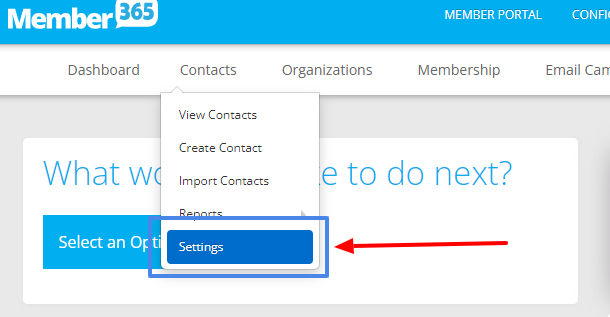
1. Go to your dashboard, under contacts, select settings.
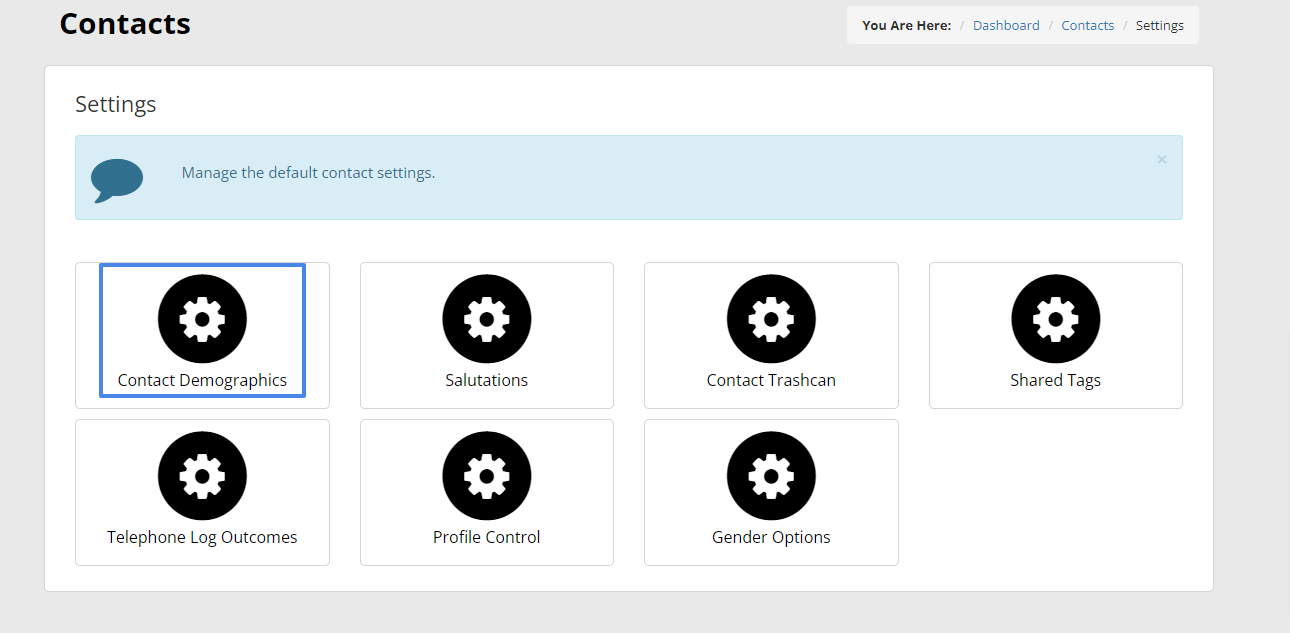
2. Select Contact Demographics
3. Click "Create Contact Demographics" and type in the name of the contact demographic. In this example, we created the "Sponsor" contact demographic.
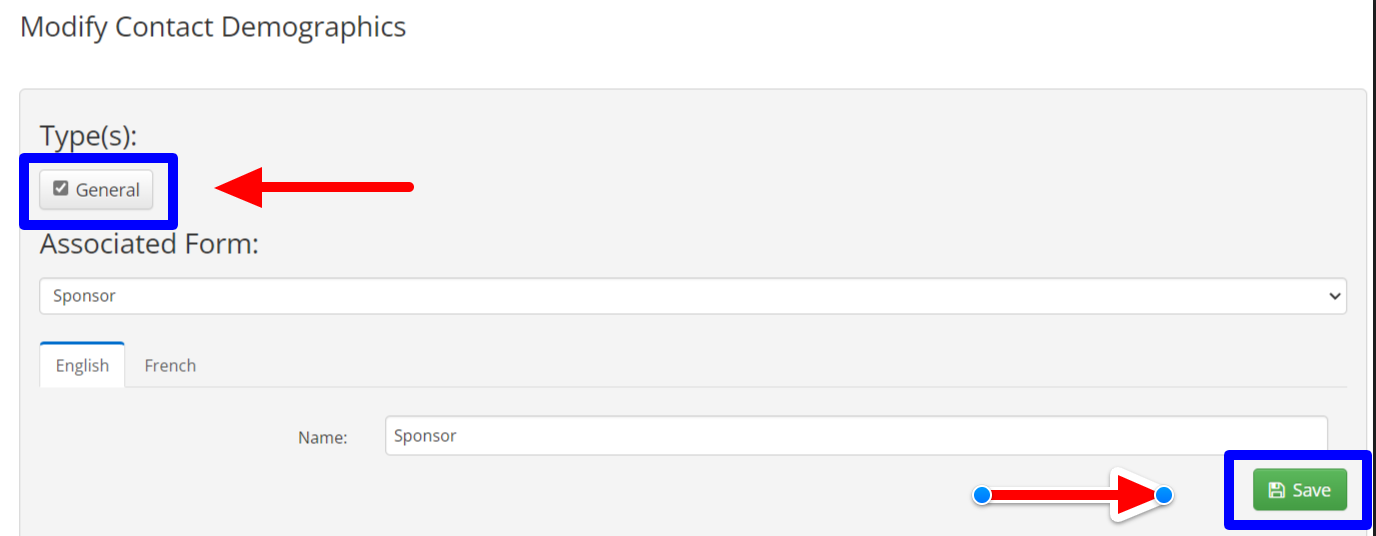
4. Check off 'General' box and the 'Save' button.
5. Now go to a contact's contact detail page and on the Contact Demographics section, check off the specific Contact Demographic to be linked with this non-member contact.
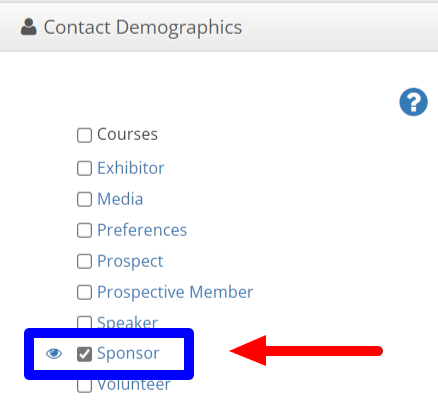
6. If you have a large number of contacts that you need to be updated to be linked to a specific contact demographic, please submit a ticket so we can run a mass update. We just need a list of email addresses and the name of the contact demographic in an excel sheet.
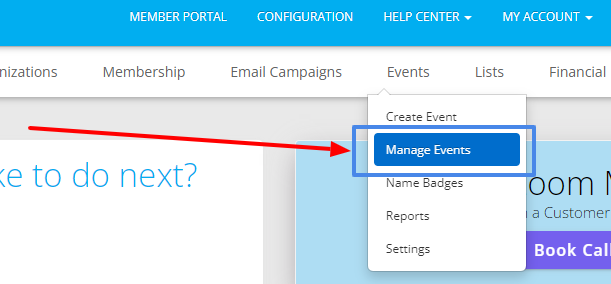
Step 2: Now we'll go into the dashboard menu and select "Manage Events".
2. Select the event that you want the contact demographics to be tied to.

3. Select "Tickets".

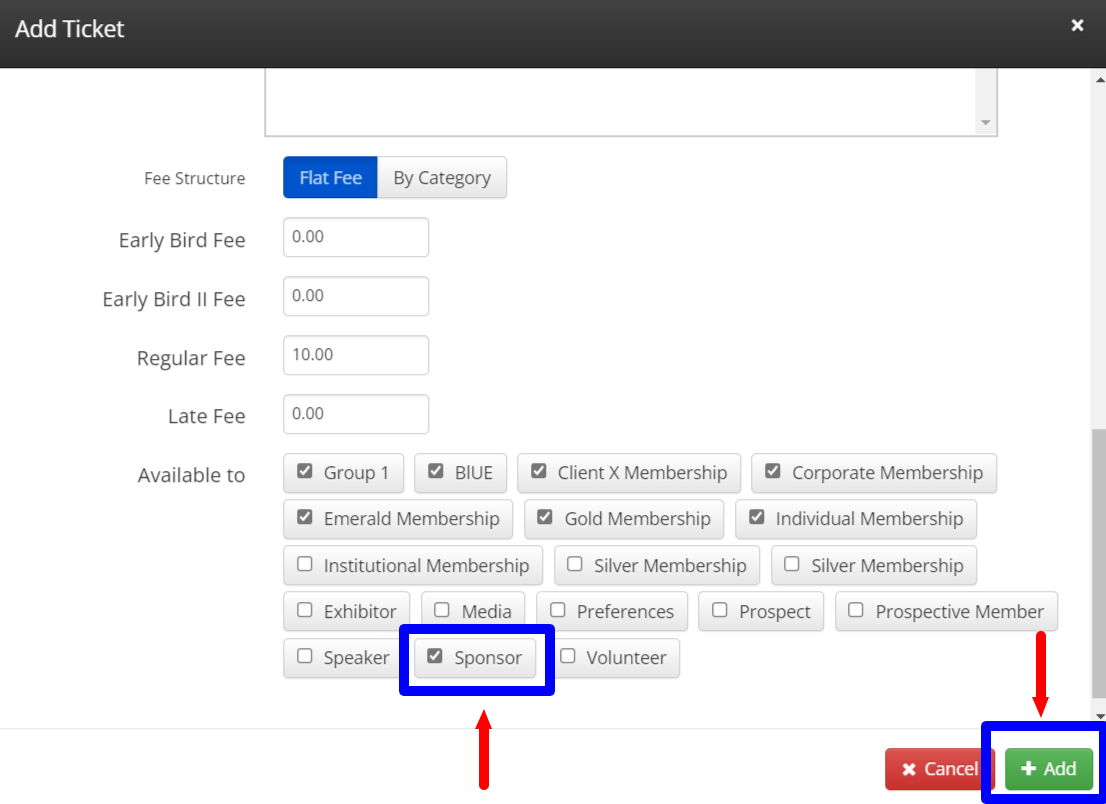
4. Scroll down the Fee Structure section and whether you choose Flat Fee or By Category type, check off the contact demographic you want that ticket price to be made available for non-member contacts who has that specific contact classification. Click the 'Add' button.
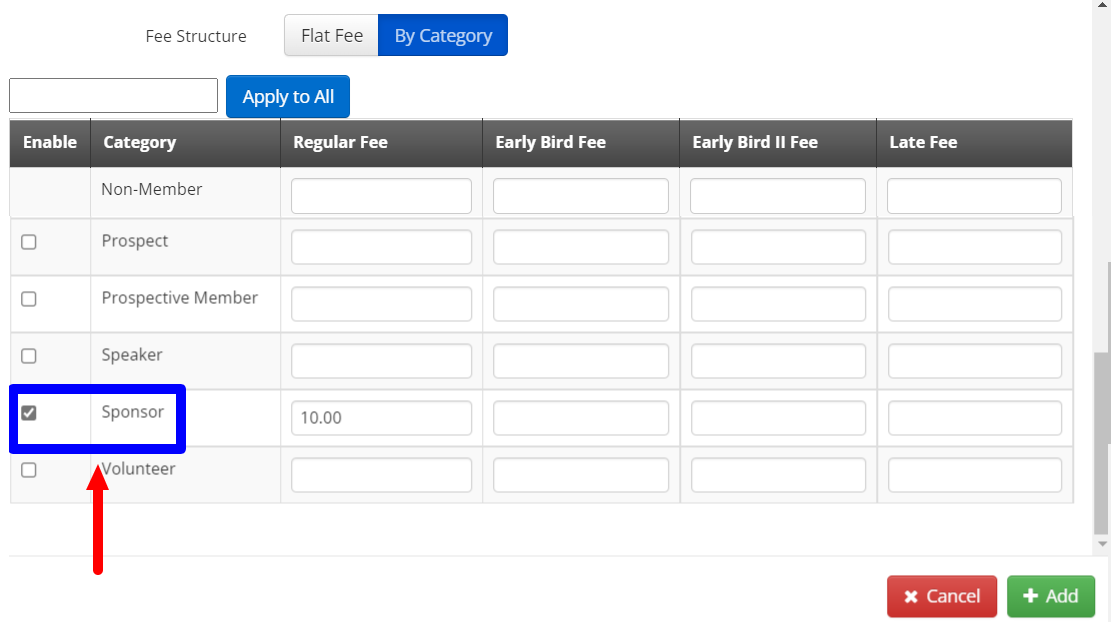
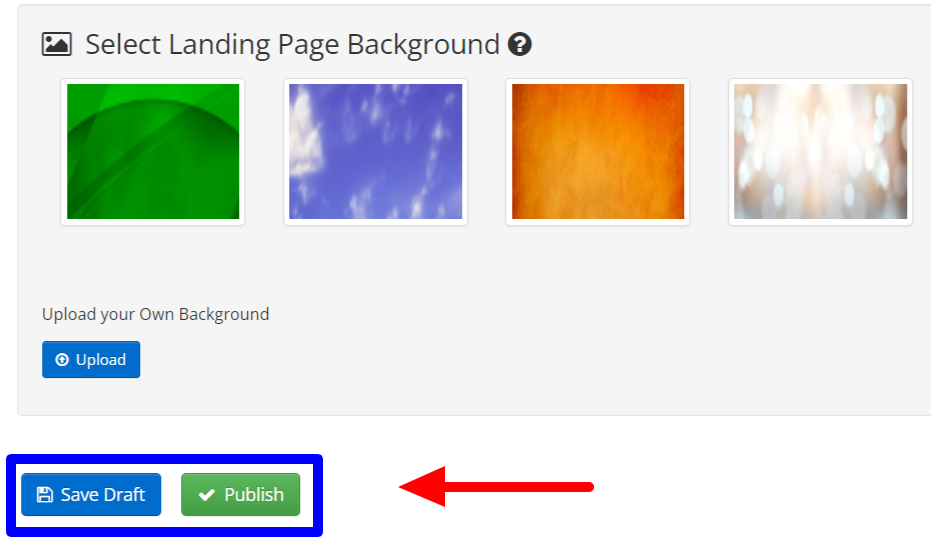
5. Click 'Save Draft' or 'Publish' button.
Congratulations! All contacts having the "Sponsor" Contact Demographics can purchase that ticket
Comments
Please sign in to leave a comment.